Enter your address to shop this item
Volkano Wireless Bluetooth Headphones - Impulse Series - Black - 3301.17 cc
Meet the Volkano Impulse Bluetooth headphones, reliable wireless over-ear headphones built for everyday listening at work, home, or on the move. Enjoy many hours of playtime from the 500 mAh battery, then top up quickly via the convenient USB-C charging port. With Bluetooth 5.3, pairing is quick and stable up to 10 m, so you can stream your playlists, podcasts, and videos without fuss.
These headphones with FM radio let you tune into live stations anywhere. You can also load tracks directly to a TF (microSD) card for data-free, offline listening, or switch to the included 3.5 mm Aux cable to carry on listening when Bluetooth isn't an option. 40 mm drivers deliver balanced sound across the 20 Hz-20 kHz range, while the over-ear design is comfy for long sessions.
If you're searching for USB-C charging headphones, headphones with FM radio, or headphones with SD/TF card, Impulse ticks all the boxes with simple controls and flexible ways to play.
Feature Highlights
- 15-Hour Wireless Playtime - Up to 15 hrs at 50% volume (about 12 hrs at 100%)
- Wireless Over-Ear Freedom - Bluetooth 5.3 connection up to 10 m
- Built-In FM Radio - Tune into local stations without your phone
- TF Card Playback - Load music to a microSD/TF card for data-free listening
- Wired Listening Option - Keep going via the included 3.5 mm Aux cable
- USB-C Charging Port - Easy, modern charging in 2.5 hours
- 40 mm Drivers - Full-range sound for music, movies, and podcasts
Technical Specifications
- Bluetooth Version: V5.3 (JL chipset)
- Profiles: A2DP, AVCTP, AVDTP, AVRCP, HFP, SPP, SMP, ATT, GAP, GATT, RFCOMM, SDP, L2CAP
- Wireless Range: 10 m
- Driver Size: 40 mm
- Impedance: 32
- Frequency Response: 20 Hz - 20 kHz
- Sensitivity: 105 3 dB
- Battery: 3.7 V / 500 mAh
- Playtime: Up to 15 hrs (50%); ~12 hrs (100%)
- Charging: USB-C; ~2.5 hrs; Input 5 V DC
How to Set Up & Use Your Volkano Impulse Series Bluetooth Headphones
First-Time Charging
Before using your Volkano Impulse Series Bluetooth Headphones for the first time, fully charge the battery.
- Insert the USB-C connector into the charging port on the headphones.
- Connect the other end of the cable to a suitable 5 V USB wall charger or an available USB port on your computer.
- The LED indicator will illuminate green while charging.
- Allow approximately 2.5 hours for a full charge.
- Once fully charged, the LED indicator will switch off automatically.
If the Headphones Do Not Charge
- Confirm that the USB-C cable is inserted fully.
- Test another known-working USB-C cable.
- Try a different 5 V USB wall charger or USB port.
- Leave the headphones connected for several minutes before attempting to switch them on if the battery is completely flat.
- If there is still no charging indication after testing another cable and power source, the unit may require warranty assessment.
Bluetooth Pairing Instructions
Your headphones must be paired with a Bluetooth device before they can be used in Bluetooth mode.
Automatic Pairing
- Switch the headphones ON.
- The headphones will automatically enter Bluetooth mode.
- On your phone, tablet, laptop or other compatible device, open Bluetooth Settings.
- Turn Bluetooth ON and search for available devices.
- Select "Impulse" from the device list.
- You will hear a connection tone once pairing is successful.
- The LED indicator will flash blue when successfully paired.
- You can now play audio through the headphones.
If prompted for a Bluetooth password, enter:
0000
It is normally only necessary to pair the headphones once with each device. After successful pairing, the headphones should reconnect to the previously paired device when switched on and when Bluetooth is enabled.
If the Headphones Do Not Appear in the Bluetooth List
- Ensure the headphones are switched on and have entered Bluetooth mode.
- Keep the headphones close to the phone, tablet or computer during initial pairing.
- Confirm that the source device allows new Bluetooth connections.
- Check whether the phone or computer has reached its maximum number of saved Bluetooth devices.
- Remove old or unused Bluetooth pairings and search again.
- Switch Bluetooth off and back on before retrying.
- Test pairing with a second compatible device if necessary.
If Bluetooth Connects but Audio Skips, Crackles or Cuts Out
The Impulse Series supports Bluetooth 5.3 with an effective range of up to 10 metres.
If audio stutters, glitches, crackles or cuts out:
- Keep the source device within close range of the headphones.
- Remove physical obstructions between the headphones and source device where possible.
- Switch off nearby Bluetooth devices that are not being used.
- Delete the existing Impulse pairing from the source device.
- Restart both the headphones and source device.
- Pair the headphones again.
- Test the headphones with a second compatible phone, tablet or computer.
Test the AUX Connection
If Bluetooth playback remains unstable, connect the supplied 3.5 mm AUX cable.
- If the headphones play correctly through AUX but Bluetooth playback is unstable, the issue is more likely related to the Bluetooth connection or source device.
- If the same distortion or missing audio occurs through both Bluetooth and AUX, the headphones may require warranty assessment.
If Only One Side Is Working
If the left or right speaker has no sound or is significantly quieter:
- Disconnect and reconnect the Bluetooth connection.
- Confirm that the source device's left/right audio balance is centred.
- Test another music track or application.
- Test the headphones with another compatible device.
- Connect the supplied AUX cable and check whether both sides operate correctly.
If one side remains non-functional through both Bluetooth and AUX, this may indicate an individual speaker, internal wiring or hardware concern requiring warranty assessment.
Distorted, Crackling or Unbalanced Sound
If the audio sounds distorted, crackles or one side is significantly louder than the other:
- Reduce the source device volume and test again.
- Try another audio track or streaming application.
- Reconnect Bluetooth.
- Test another compatible source device.
- Test through the supplied AUX cable.
- Check that the source device's audio balance settings are centred.
If the same earcup remains distorted through multiple devices and through AUX, the unit should be assessed under warranty.
AUX Mode
The supplied 3.5 mm AUX cable allows the headphones to be used as wired headphones.
When using the AUX connection:
- Bluetooth controls may not be available.
- You cannot use the headphone controls to pause, change volume or skip tracks in the same way as Bluetooth mode.
- Playback is controlled primarily by the connected source device.
If the headphones work correctly through AUX but not Bluetooth, follow the Bluetooth troubleshooting steps above.
Button Controls Not Responding
If the Power, Volume, Play/Pause or track controls do not respond:
- Confirm that the headphones are sufficiently charged.
- Ensure you are using Bluetooth mode if attempting to control playback from the headset.
- Do not force a button that feels recessed, jammed or stuck.
- When using the 3.5 mm AUX connection, some Bluetooth control functions will not operate.
- Remote play/pause/previous/next functions require the connected Bluetooth device to support AVRCP (Audio/Video Remote Control Profile).
If a physical button has become recessed or permanently non-responsive, the unit may require warranty assessment.
Computer Pairing & Driver Questions
If Windows requests a driver after connecting the headphones:
- Ensure Bluetooth is enabled and functioning correctly on the computer.
- Use the latest compatible Bluetooth drivers provided by the computer or Bluetooth adapter manufacturer.
- Confirm that the computer supports the required Bluetooth audio profiles.
- Restart Bluetooth and pair Impulse again after updating the relevant drivers.
The headphones support common Bluetooth profiles including A2DP, AVRCP and HFP.
Calls & Hands-Free Operation
If connected to a Bluetooth mobile phone but calls or audio do not operate correctly:
- Confirm that the phone supports the required A2DP and hands-free Bluetooth profiles.
- Make sure the headphones are selected as the active audio output/input device.
- Keep the phone within the effective wireless range.
- Disconnect and reconnect Bluetooth if the call profile has not loaded correctly.
For PC applications such as Teams, Zoom or other conferencing platforms, also ensure the Impulse headset is selected as the active microphone and speaker within the application settings.
What's in the box
1 x Volkano Impulse Bluetooth® Headphones
1 x USB Charging Cable
1 x Aux Cable
1 x Instruction Manual
| Brand | Volkano |
| Warranty | Limited (12 months) |
| is Portable | Yes |
| Is Wireless | Yes |
| Model | VB-VH100 |
| Waterproof | No |
| Connectivity | Bluetooth |
| Is Lightweight | Yes |
| Is Rechargeable | Yes |
| Fit/Style/Type | Over Ear |
| What's in the box | 1 x Volkano Impulse Bluetooth® Headphones 1 x USB Charging Cable 1 x Aux Cable 1 x Instruction Manual |
| Compatible Devices | Smartphones |
| Headphone Features | Sports & Exercise |
| Water Resistant | No |
| Merchandising Tags | Top Picks |
| Assembled Dimensions | 8 x 20 x 25 cm |
| Noise Cancelling | No |
| Has Integrated Remote | Yes |
| Proudly South African | No |
| Headphones Control Type | Media Control, Volume Control, Call Control |
| Headphones Noise Control | None |
| Peripheral Connectivities | Wireless |
Reasons to shop TakealotNOW
Get the same deals and prices you would find on Takealot.com.

Shop 1000's of the Takealot products you love.
Enjoy ultra-fast delivery to your doorstep, in minutes.
Shop by category
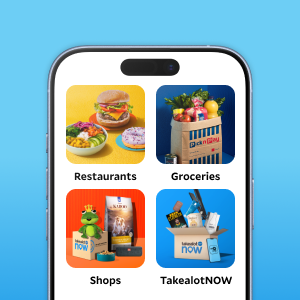
Download the Mr D app or shop online





© Mr D (Pty) Ltd. All rights reserved. Reg 1992/04664/07. VAT number: 4330 165 400. 12th floor, 10 Rua Vasco da Gama Plain, Foreshore, Cape Town

